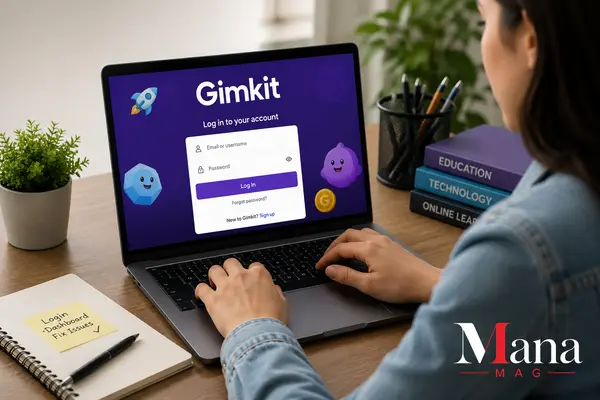
Gimkit is the quiz-based classroom game that turns test review into something students actually look forward to. If you’re here, you probably just need to get into your account, understand what’s waiting for you on the dashboard once you’re in, or fix a login that isn’t cooperating. This covers all three, plus a few things most guides skip, like how to tell the real Gimkit site from the copycat ones.
Getting to the Real Gimkit Login Page
The only official Gimkit website is gimkit.com. That’s it. There’s no gimkit.site, gimkitlogin.org, or gimkitlogin.online, and if you land on a page like that while searching for “gimkit login,” close the tab. These lookalike domains show up in search results because they’re built to catch traffic from people typing exactly what you just typed, and entering your email and password on one of them means handing your credentials to someone who isn’t Gimkit. Bookmark gimkit.com once you’re there and you’ll never have to worry about this again.
Once you’re on the actual site, click Log In in the top corner. From there you have three ways in, depending on how your account was originally set up:
- Email and password. Type the email tied to your account, then your password, and hit Log In.
- Sign in with Google. If you registered using a Google account (common for anyone using a school Gmail or Google Workspace account), click the Google button instead and pick the right account from the popup.
- Clever. Some schools use Clever as a single sign-on system. If your district has this set up, you’ll see a Clever login button, and signing in there logs you into Gimkit automatically without a separate password.
A successful login drops you straight onto your dashboard. If nothing happens, or you get bounced back to the login screen, jump to the troubleshooting section below.
Teacher (Educator) Accounts vs. Student Accounts
Gimkit splits its users into two account types, and it’s worth understanding the difference before you try to log in:
- Educator accounts are for teachers or anyone creating quizzes (“kits”), hosting live games, and building assignments. This requires signing up and logging in every time.
- Student accounts are optional in most cases. If a teacher is running a live game, students just need the game’s join code, a name, and a working internet connection. No account, no login screen. Accounts become useful for students mainly when a teacher assigns homework through Gimkit Assignments, since that requires being logged in so progress gets saved and tracked.
If you’re a student trying to log in and getting confused because there’s no “student login” button that makes sense, that’s usually why: you may not need one at all unless your teacher specifically told you to create an account.
Read: Back Casting Room: What It Is, How It Works, and Why Teams Use One
What You’ll Find on the Gimkit Dashboard
The dashboard is the control center for everything you do on Gimkit after logging in. For educators, it’s organized around a few main areas:
- Kits — your library of quiz sets. You can build new ones from scratch, edit existing ones, or pull ready-made kits from Gimkit’s public library instead of writing every question yourself. Kits can also be imported directly from Quizlet, which saves a lot of time if you already have flashcard sets built there.
- Classes — groups you set up to organize students, track their performance over time, and assign work to a specific class rather than a whole school.
- Assignments — homework-style sessions students complete on their own schedule, unlike a live game where everyone plays at once. This feature, along with a few of the newer game modes, is part of Gimkit Pro rather than the free plan.
- Reports — performance data showing how individual students or whole classes did on a given kit, useful for spotting which concepts need more review.
- Settings — accessible from the “Me” dropdown menu, or directly at gimkit.com/settings. This is where you update your email, change your password, and manage account or billing details.
Students who do have accounts see a lighter version of this: their joined classes, any assignments waiting for them, and past game history.
How to Host a Live Game
For teachers, this is the part that actually gets used in class:
- Log in and open the kit you want to use, or create a new one.
- Click Play Live (sometimes labeled “Host”).
- Choose a game mode. Gimkit rotates a handful of free modes and keeps others locked behind Pro.
- Set your options, things like whether late players can join after the game starts, team mode, and the nickname generator, which is handy if you don’t want students typing questionable usernames.
- Click Continue, and the Lobby screen appears with a game code.
- Display that code for your class. Students go to gimkit.com/join, type the code, enter a name, and they’re in.
- Once everyone’s ready, click Start Game.
Game codes are short-lived on purpose. They’re generated fresh for each session and stop working once that session ends, which is why searching for a “permanent Gimkit code” online won’t get you anywhere useful; codes that claim to “always work” are outdated or fake.
Read: PayByPlateMA Explained: How It Works, How to Pay, and How to Avoid Scam Sites
Free vs. Gimkit Pro
Gimkit runs on a freemium model, and knowing what’s actually behind the paywall saves confusion later.
| Free (Basic) | Gimkit Pro | |
| Hosting live games | Yes, with a subset of modes | All game modes |
| Player cap on select modes | Capped, roughly 5 players on Pro-exclusive modes accessed via trial | Full class size |
| Assignments (self-paced homework) | Not available | Included |
| Custom kit creation | Yes | Yes |
| Price | $0 | $14.99/month or $59.88/year |
New educators typically get a free trial period for Pro before deciding whether to subscribe. Schools that want it for an entire department or building usually go through a group or site license instead of individual subscriptions, which brings the per-teacher cost down significantly compared to paying month to month.
Fixing Common Gimkit Login Problems
Most login issues fall into a handful of categories. Work through these roughly in order:
Wrong password or “user not found” errors. This is almost always a typo, either in the email address or an autofilled password from a different site. Retype both manually instead of trusting autofill, especially if you have more than one Gimkit account (some people have both a personal one and a school-issued one).
Forgot your password? Click the link right below the password field on the login screen. Gimkit sends a reset email, usually within a couple of minutes. If it doesn’t show up, check spam before assuming something’s broken, and make sure you’re using the exact email your account was created with.
Google sign-in isn’t working. If your school manages your Google account through Workspace, an IT admin may have restricted which third-party apps (like Gimkit) are allowed to connect. This isn’t something you can fix on your end; it needs to be whitelisted by the school’s IT department.
The login page is blank or won’t load. Try a different browser first. If that fixes it, the problem was likely a browser extension, outdated cache, or an old saved version of the page. Clearing your browser’s cached data for gimkit.com is usually enough.
Everything looks fine but you’re stuck on a school network. Some school Wi-Fi networks block Gimkit at the network level, particularly during testing windows. Switching to mobile data briefly is a fast way to confirm whether that’s the issue.
Two-factor authentication code not arriving. If you’ve enabled 2FA, double-check the phone number or authenticator app tied to your account, and give it a minute; codes can be delayed on slower networks.
If none of that resolves it, Gimkit’s own help center (help.gimkit.com) covers account-specific issues in more depth than any third-party guide can, since it reflects whatever’s currently happening on their backend.
Read: JoinPD.com: How to Join a Pear Deck Session with a Code (Student Guide)
A Quick Note on Gimkit’s Background
Gimkit isn’t a corporate edtech product built by a large company. It started in 2017 as a class project by Josh Feinsilber, then a student at Gibson Ek High School near Seattle, a school built around project-based learning. Jeff Osborn joined as co-founder in 2019 after finding the project online. The company has stayed independent and relatively small, reportedly still running with a lean team, which is unusual for a tool used in classrooms as widely as this one is. That background is part of why the platform has a slightly different feel from something like Kahoot: a lot of the newer game modes and features get shaped by direct feedback from teachers and students in Gimkit’s own community channels rather than a traditional corporate roadmap.
Bottom Line
Logging into Gimkit is only complicated if you land on the wrong website or hit one of the handful of predictable snags covered above. Stick to gimkit.com, use whichever sign-in method matches how your account was created, and the dashboard itself is straightforward once you’re in: kits, classes, assignments, and reports, all in one place. For students, remember that a login often isn’t even necessary just to join a live game.
FAQ
Do students need an account to play Gimkit?
Not for a live, teacher-hosted game. Students just need the game code from their teacher, plus a name to join with. An account only becomes necessary if a teacher assigns self-paced homework through Gimkit Assignments, since that requires being logged in to save progress.
What’s the difference between gimkit.com/join and the regular login page?
gimkit.com/join is strictly for entering a live game code, no account needed. The regular login page (gimkit.com) is for educators and any student with a registered account who wants to reach their dashboard, past assignments, or class history.
Why do Gimkit game codes stop working?
Codes are generated fresh for each live session and expire once that session ends. This is intentional, so old codes floating around online won’t let someone join a class that already finished playing.
Is Gimkit free to use?
Yes, there’s a free tier that lets teachers host live games with a limited selection of modes. Gimkit Pro ($14.99/month or $59.88/year) unlocks the full mode library, higher player caps on premium modes, and Assignments for self-paced homework.
I’m signed in with the wrong Google account. How do I switch?
Log out from the “Me” menu, then log back in and select “Sign in with Google” again. When the Google account picker appears, choose the correct account, or click “Use another account” if the right one isn’t listed.
Can I use Gimkit on a phone or tablet?
Yes. Gimkit works through a mobile browser (Chrome on Android, Safari on iPhone) using the same login process as desktop. No separate mobile login exists.
Are gimkitlogin.org or similar sites official?
No. The only official Gimkit domain is gimkit.com. Third-party sites using “gimkit” in their name are not affiliated with the company, and entering your credentials on one of them is a real security risk.

Must See
-


Sports
/ 2 months agoLos Angeles Chargers vs Detroit Lions Match Player Stats: 2025 Hall of Fame Game
The Los Angeles Chargers defeated the Detroit Lions 34-7 in the 2025 NFL Hall...
By Mica -


Sports
/ 2 months agoPittsburgh Pirates vs Mets Match Player Stats: August 2026 Game Breakdown
The Pittsburgh Pirates and New York Mets produced two very different games during their...
By Mica -


Sports
/ 2 months agoGolden State Warriors vs Orlando Magic Match Player Stats, Box Score and Game Analysis
The Golden State Warriors beat the Orlando Magic 120-97 on December 22, 2025, at...
By Mica